YUMI PenScreen
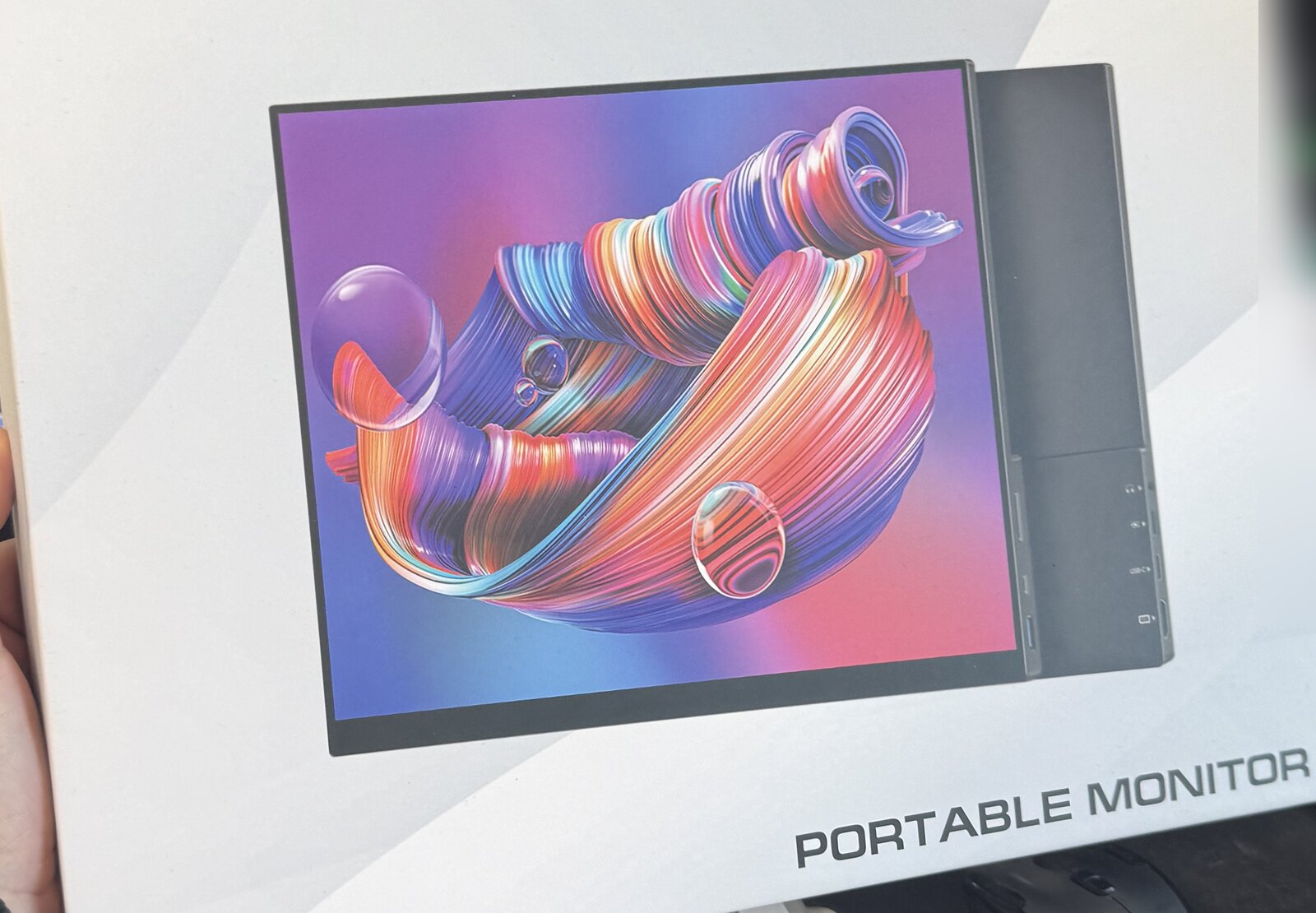
The YUMI PenScreen is a 15.6-inch Full HD portable display with touch and active pen support, made to work with the Yumi apps.
More than a touch screen
A screen for AI work. Drive and manage your AI agents by touch in the Mi by Yumi app. AI credits are managed in your Yumi account. Build applications, mobile apps included, with Yumi Code and your AI agents.
Yumi Desktop turns it into a pen display on a Mac. macOS has no native touch screen support: without a driver, the screen acts as a simple mouse, without pressure. With Yumi Desktop you get:
- the pointer placed under the pen or the finger;
- a drawing tool, the Whiteboard;
- pen pressure and its settings;
- full pen mapping: buttons, offsets and calibration.
Draw, sketch and sculpt. Draw and annotate with pressure, or model and sculpt in 3D with the pen, for example in Blender, where pressure carves and pushes the shape.
An updatable screen. Its firmware, display name and boot logo can be updated from the computer over USB-C, which a typical portable monitor does not offer. See Firmware updates.
By system
| System | Touch and pen | Yumi Desktop |
|---|---|---|
| macOS | Simple mouse on its own, full pen with Yumi Desktop | Available, required for pen and pressure |
| Windows | Touch and basic pen work natively | Coming soon |
Quick start (two minutes)
- Take the screen out of its protective sleeve.
- Connect the USB-C to USB-C cable between the full-featured USB-C port of the screen and a USB-C port of your computer that outputs video.
- The YUMI logo appears, then your desktop extends to the screen.
- On a Mac, open Yumi Desktop for the pen and pressure.
No image? Go to Troubleshooting. All figures are on the Technical specifications page. The stylus is an optional accessory: see In the box.
In this section
| Page | What you will find |
|---|---|
| Technical specifications | Full spec sheet |
| In the box and accessories | Box contents, optional stylus and charger |
| Connecting the screen | Mac, Windows, USB-C, HDMI, power |
| Stylus | Pen mode, pressure, tilt |
| Yumi Desktop | Install on a Mac, permissions, pen and touch settings |
| Firmware updates | Updating firmware, display name and boot logo |
| Troubleshooting | No image, no touch, no pressure |
| FAQ | Short answers to common questions |
You reached this page from the boot screen
The address wiki.yumi-lab.com/screen shown on the YUMI boot logo leads here.