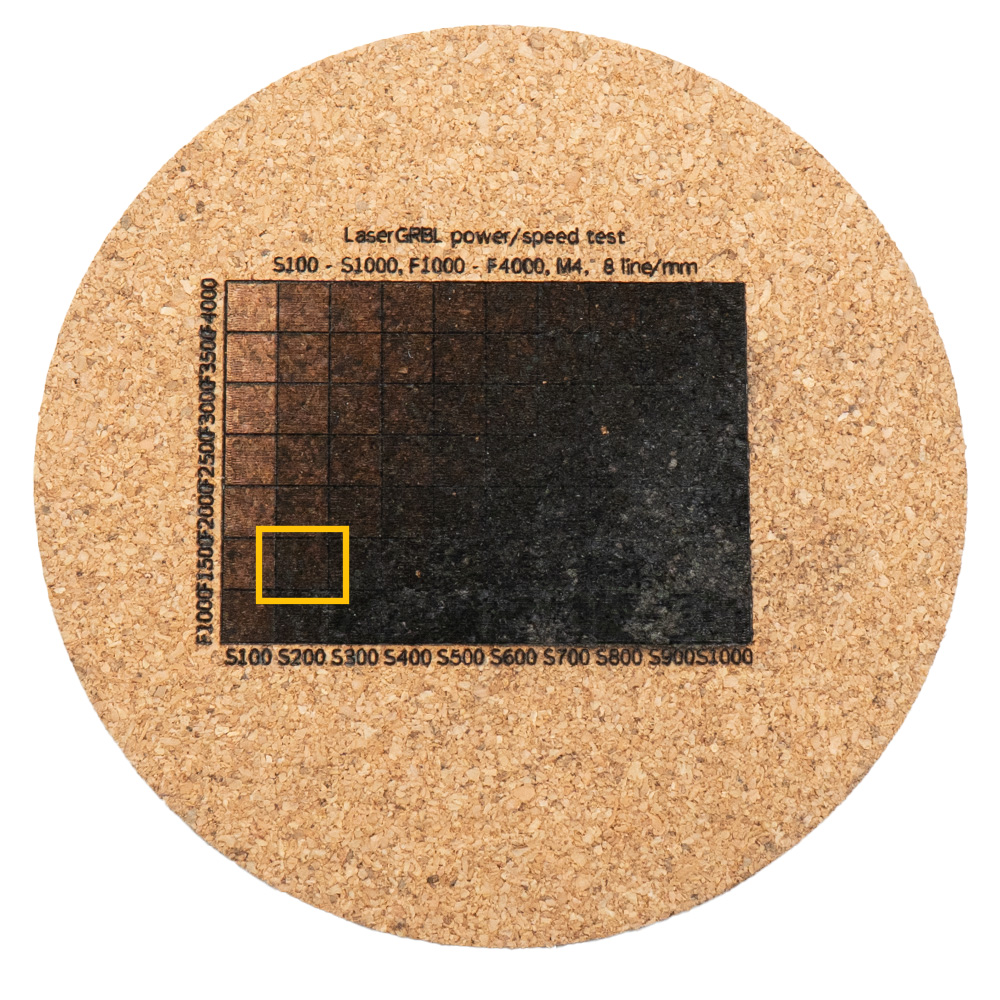
Laser GRBL
1. LaserGRBL: Free, Powerful, and Easy to Use

Unlike many expensive engraving programs, LaserGRBL is:
- Free and open-source
- Compatible with the Yumi L-A4
- User-friendly
- Supports multiple file formats (JPG, PNG, SVG...)
The perfect choice to get started without investing in paid software.
2. Prepare and Test Your Engraving
-
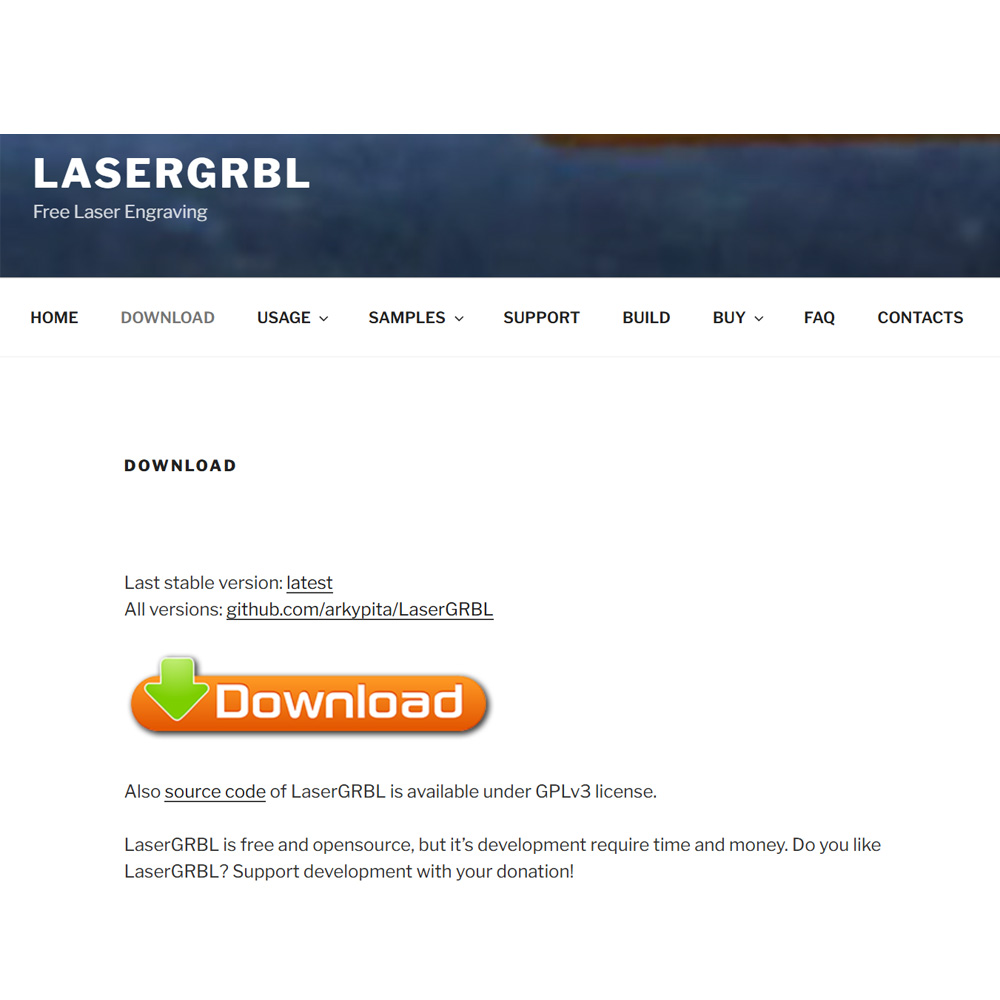
Download and install LaserGRBL, then connect your Yumi L-A4 to your PC.
-
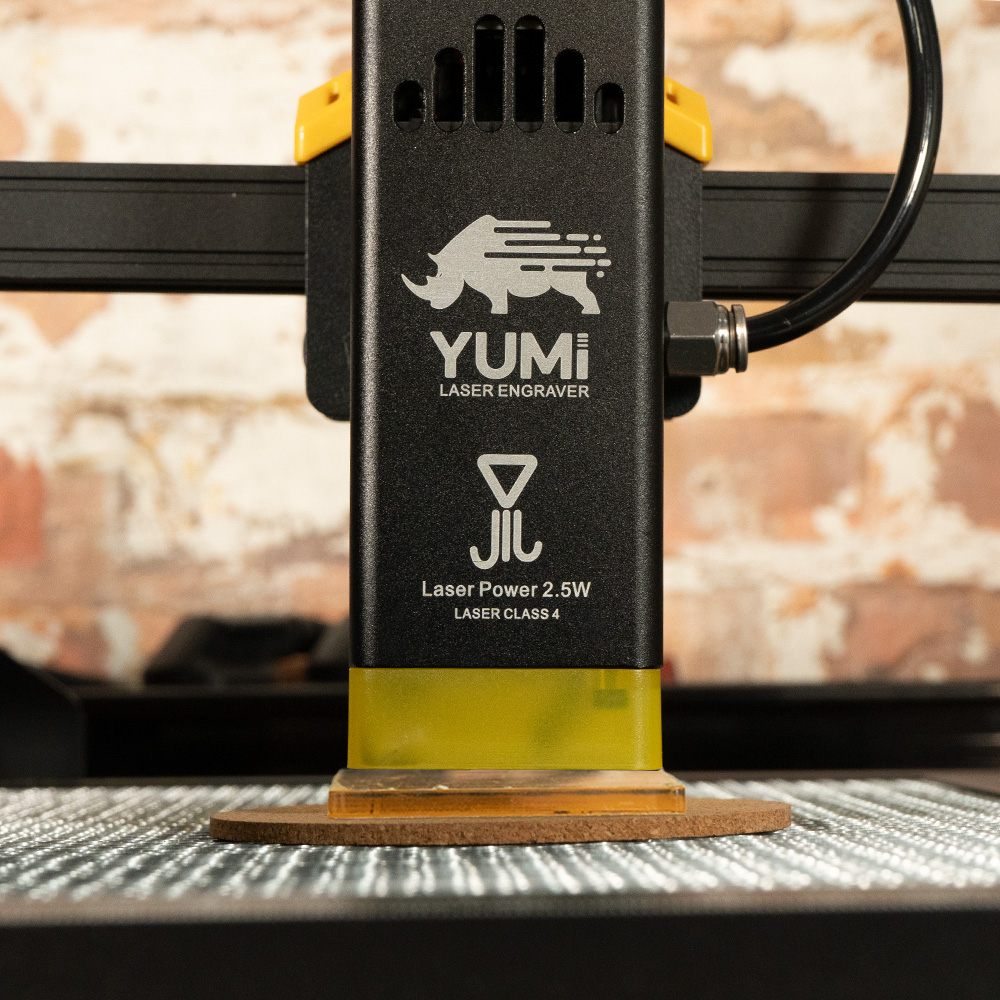
Place your material and adjust the laser head height using the included guide.
-
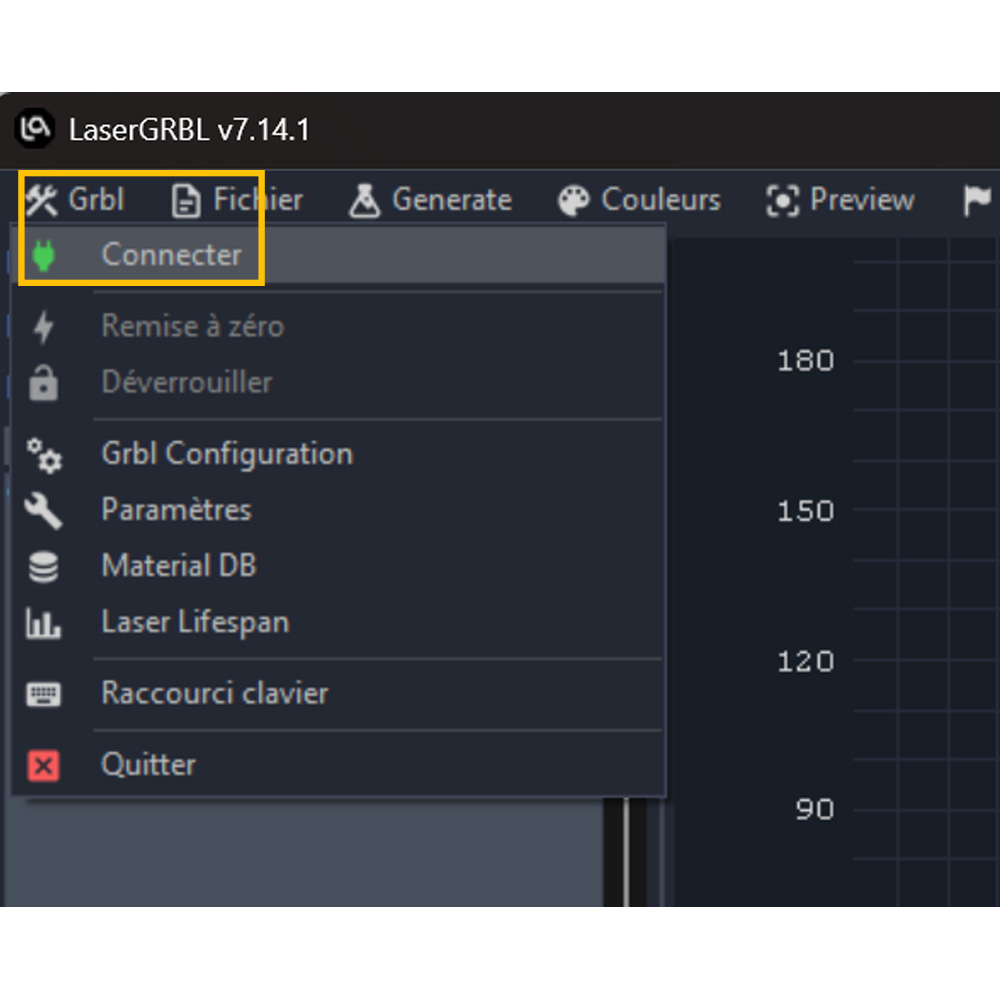
Connect the Yumi L-A4 and run a test engraving.
-
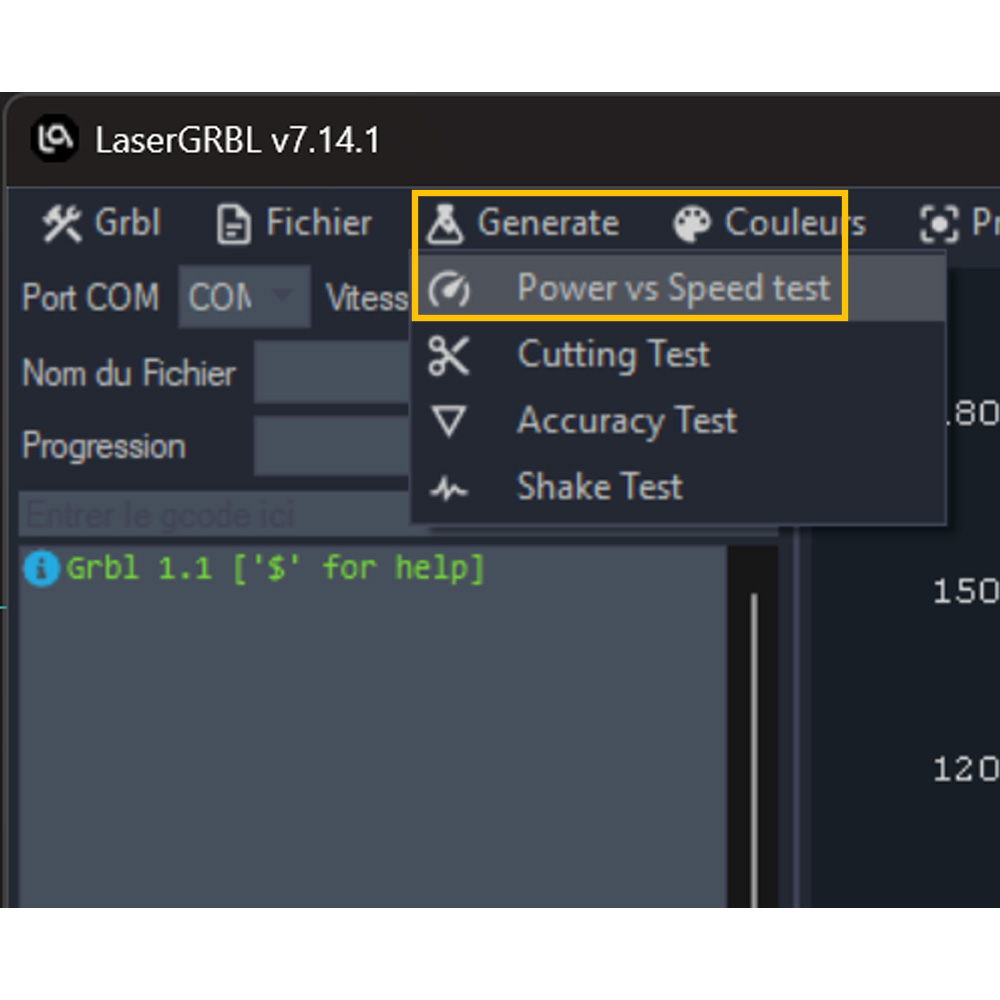
Perform a burn test.
-
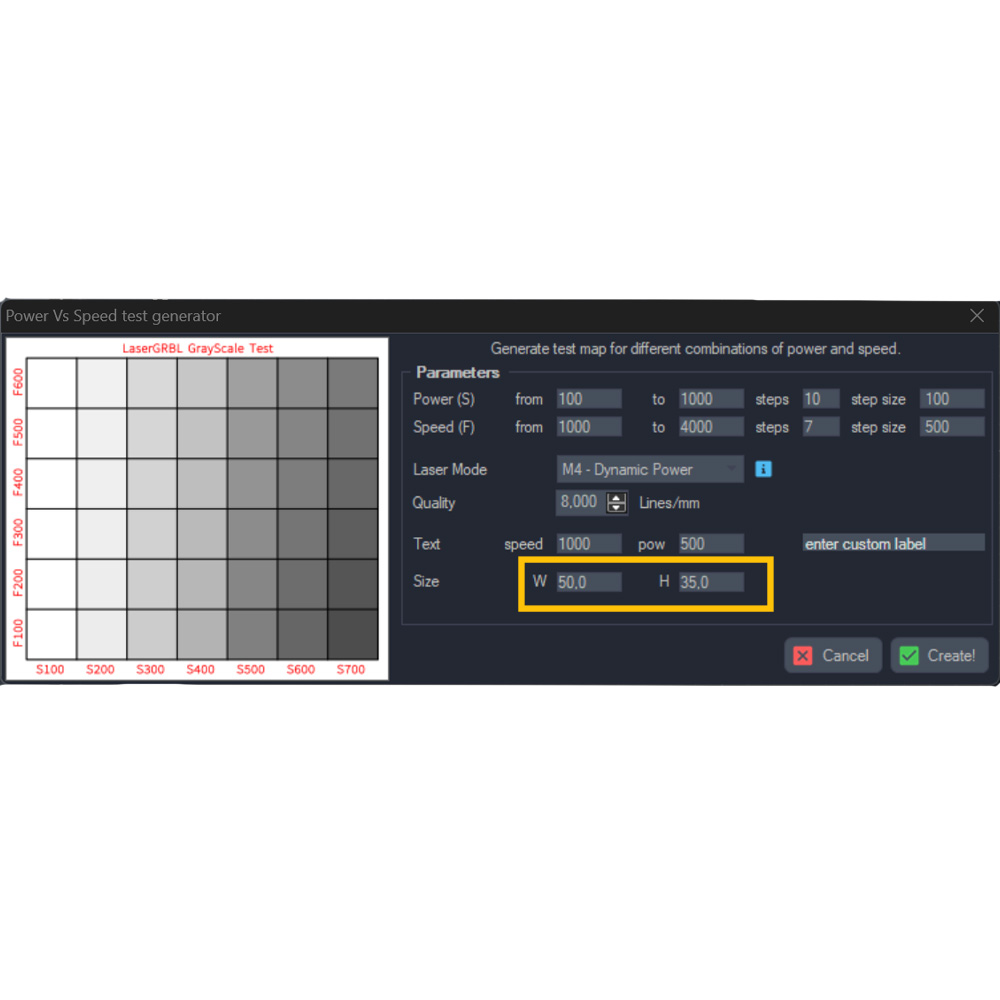
Adjust the size based on your material (in mm).
-
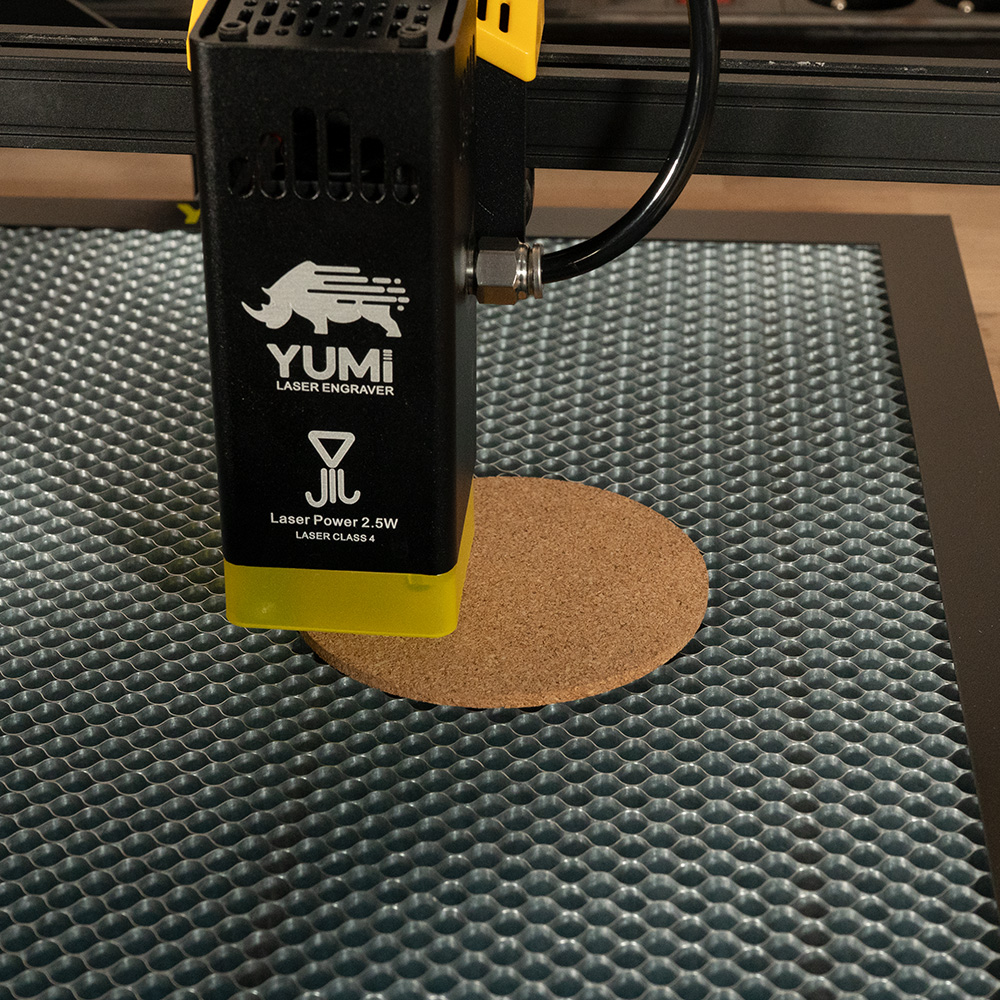
Position the laser head so it starts from the bottom-left corner of the engraving area.
-
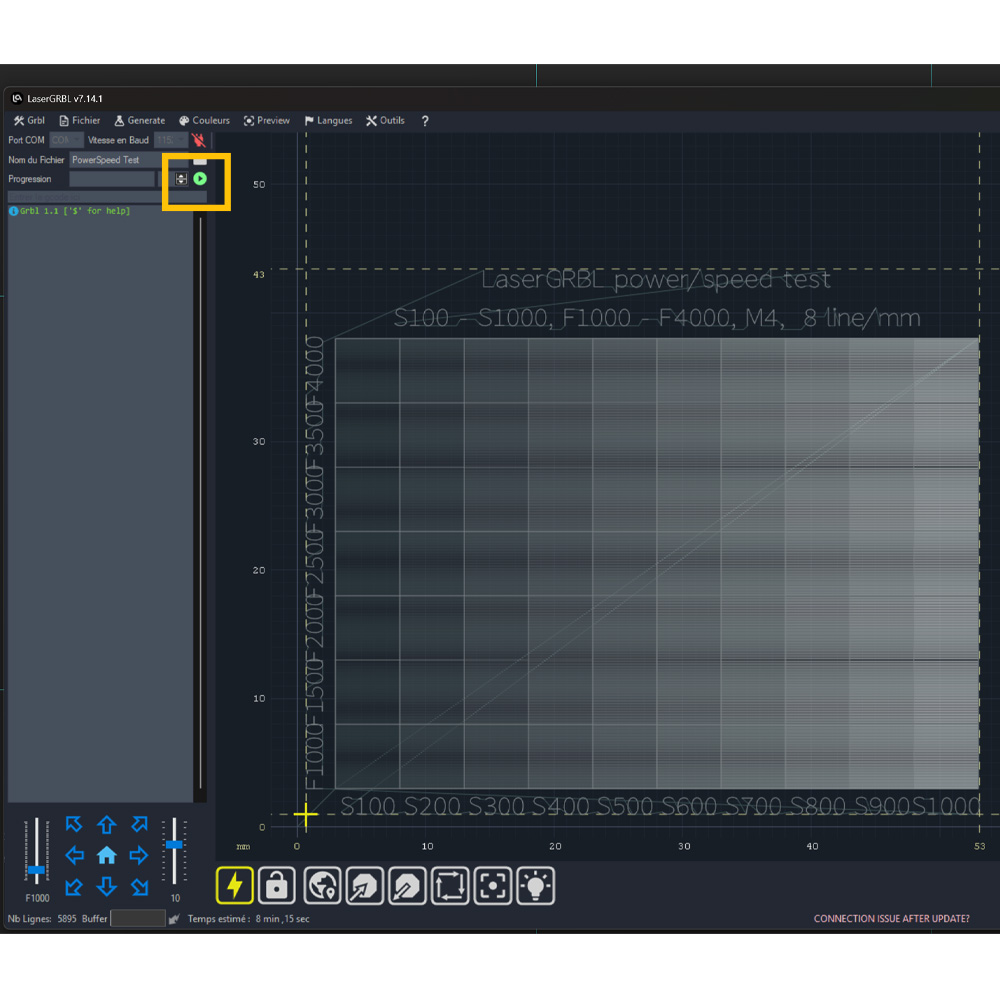
Start the test engraving.
-
The ideal settings produce a black, clean, and even engraving — without burning or digging into the material. Keep notes of your best parameters for future projects.